
In this article, we will learn about Run Local LLMs in .NET: Rapid Prototyping with Ollama & Semantic Kernel. We discuss here how to run large language models completely offline in .NET using Ollama and Semantic Kernel. This quick start demonstrates private, affordable, and flexible local AI for modern C# developers, including setup, integration, and sample use cases. Please read my previous article on Building your own AI Assistant Using Python, LangChain, Streamlit & GPT‑4o (Step‑by‑Step Guide).
SUPPORT ME

Unlock the power of Large Language Models on your own hardware! This tutorial shows you how to combine Ollama and Microsoft’s Semantic Kernel to run state-of-the-art LLMs locally, integrate them into a .NET application, and create a chat UI – all without relying on cloud APIs. Perfect for developers who want privacy, speed, and hands-on control over their generative AI stack.
Why Run LLMs Locally?
- Data Privacy: Keep sensitive data on-premises—no calls to third-party APIs.
- No Vendor Lock-in: Use open models (like Llama 3) and self-hosted backends.
- Lower Latency: Eliminate network delay for instant responses on your machine.
- Experiment Freely: Prototype new features with modern AI, no cloud quotas needed
What You’ll Build
- Pull and run a modern LLM (like
llama3.2) using Ollama. - Connect it to a .NET app using Semantic Kernel.
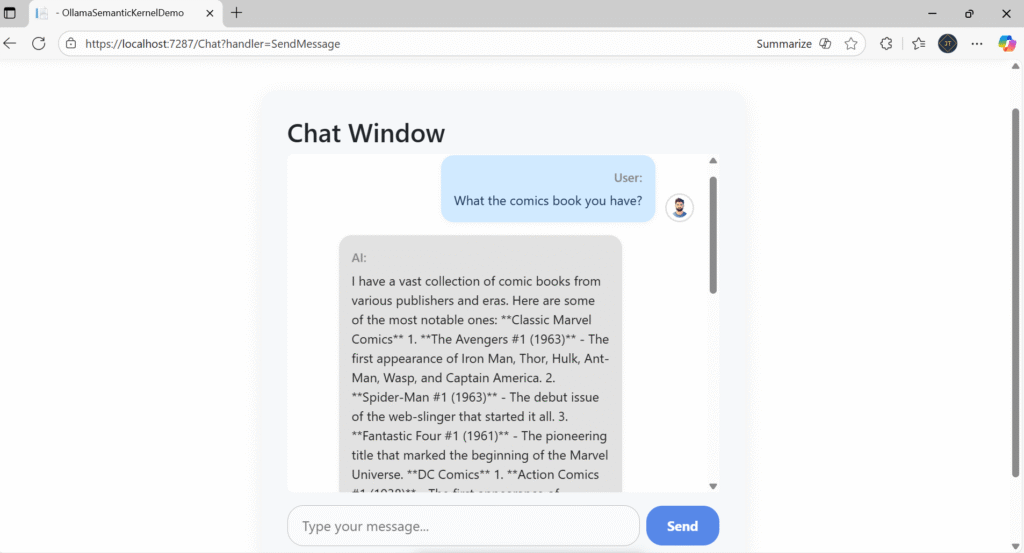
- Create a Razor Pages chat UI that feels like a modern messaging app.
What is Ollama?
Ollama is a self-hosted platform designed to run large language models (LLMs) locally on your own hardware, without relying on cloud services. This approach provides several key benefits:
- Data Privacy: Your data stays entirely within your own environment, eliminating risks associated with transmitting sensitive information over the internet.
- Lower Costs: Avoid the expenses tied to pay-per-call cloud APIs by running models directly on your machine or server.
- Simple Setup: Quickly download and serve models like llama3.2 with minimal configuration, enabling fast experimentation and deployment.
With Ollama, you pull the AI models you need, serve them locally, and interact with them via standard APIs-just as you would with remote services-but with added control, privacy, and speed.
What is Semantic Kernel?
Semantic Kernel is an open-source SDK developed by Microsoft that empowers developers to effortlessly infuse AI capabilities into .NET applications. It enables you to seamlessly combine AI models with your existing APIs and application logic, helping you build intelligent, context-aware solutions.
Key features include:
- Function Orchestration: Manage and compose multiple AI-driven functions like text generation, summarization, and question answering efficiently within your applications.
- Extensibility: Support for various AI providers such as OpenAI, Azure OpenAI, and local deployment options like Ollama, giving you flexibility in choosing AI models.
- Context Management: Maintain and utilize conversational history, user preferences, and other contextual data to deliver personalized and coherent AI experiences.
By integrating Semantic Kernel with Ollama, you gain the ability to run powerful AI workloads entirely on your own hardware. This approach gives you full control over your data and resources, while also reducing the costs associated with cloud-based AI APIs. It’s an ideal platform for experimentation, prototyping, or offline AI execution without sacrificing advanced capabilities.
Prerequisites
- .NET 8 or 9 SDK( For my demo Visual Studio- 2026 and .NET 10)
- Ollama installed and running locally
- (Optional) Basic knowledge of ASP.NET Core and Razor Pages
Download Ollama and Set Up Ollama
You can download Ollama using this link, and install it in your machine. Then run the below command to configure the ollama.
ollama serve  // Start Ollama locally

ollama pull llama3.2 //Pull the desired model, for example
Creating a .NET project and Integrate the Ollama
For this demo, I have create .NET Core Razor pages.
- Launch the Visual Studio IDE and click on “Create new project”.
- In the “Create new project” window, select “ASP.NET Core Razor Pages” from the template list.
- Click Next. In the “Configure your new project” window, specify the name and location for the new project and then click Create.
- In the “ASP.NET Core Razor Pages” window shown next, select .NET Core as the runtime and .NET 10 from the drop-down list at the top(I’m using .NET 10).
- I have set the project name as “OllamaSemanticKernelDemo”.
Step-1: Adding the below required packages into the project
Add the Semantic Kernel package and the Ollama connector packages into the project
dotnet add package Microsoft.SemanticKernel --version 1.32.0
dotnet add package Microsoft.SemanticKernel.Connectors.Ollama --version 1.32.0-alpha
Step-2: Wire Up Semantic Kernel and Ollama in Program.cs
using Microsoft.SemanticKernel;
using Microsoft.SemanticKernel.Connectors.Ollama;

var builder = WebApplication.CreateBuilder(args);

// Add services to the container
builder.Services.AddRazorPages();
builder.Services.AddControllers();
#pragma warning disable SKEXP0070
builder.Services.AddOllamaChatCompletion("llama3.2", new Uri("http://localhost:11434"));
#pragma warning restore SKEXP0070

builder.Services.AddHttpClient();

var app = builder.Build();

// Pipeline configuration
if (!app.Environment.IsDevelopment())
{
    app.UseExceptionHandler("/Error");
    app.UseHsts();
}

app.UseHttpsRedirection();
app.UseStaticFiles(); // Important for serving static files (CSS/JS)

app.UseRouting();

app.UseAuthorization();

app.MapStaticAssets(); // Only needed if you use Semantic Kernel UI/assets/plugins
app.MapControllers();
app.MapRazorPages()
   .WithStaticAssets(); // Only needed if your Razor Pages use SK assets

app.Run();- Line #8 –
builder.Services.AddControllers()enables to use controller that we need use for API chat communication. - Line #10- Registered the
AddOllamaChatCompletion
Step 3: Build the Chat API Controller
using Microsoft.AspNetCore.Http;
using Microsoft.AspNetCore.Mvc;
using Microsoft.SemanticKernel.ChatCompletion;

namespace OllamaSemanticKernelDemo.Controllers
{
    [Route("api/[controller]")]
    [ApiController]
    public class ChatController : ControllerBase
    {
        private readonly IChatCompletionService _chatCompletionService;

        public ChatController(IChatCompletionService chatCompletionService)
        {
            _chatCompletionService = chatCompletionService;
        }

        [HttpPost]
        public async Task<IActionResult> GetChatResponse([FromBody] ChatRequest request)
        {
            if (string.IsNullOrWhiteSpace(request.Message))
            {
                return BadRequest(new { Error = "Message cannot be empty." });
            }

            var chatHistory = new ChatHistory("You are an expert about comic books");
            chatHistory.AddUserMessage(request.Message);

            try
            {
                var reply = await _chatCompletionService.GetChatMessageContentAsync(chatHistory);
                chatHistory.Add(reply);
                return Ok(new { Reply = reply.Content });
            }
            catch (Exception ex)
            {
                return StatusCode(StatusCodes.Status500InternalServerError, new { Error = ex.Message });
            }
        }
    }

    public class ChatRequest
    {
        public string Message { get; set; }
    }
}
- The controller responds at
/api/chatdue to the route template and is marked as an API controller to benefit from features like automatic model binding and validation. - The controller depends on
IChatCompletionService, an interface from Semantic Kernel that abstracts AI model chat capabilities. This is injected via constructor for loose coupling and easy testing. - This method handles POST requests. It receives a user’s chat message inside the request body wrapped in
ChatRequest, initiates aChatHistoryobject seeded with a system role, adds the user message, and calls the AI service to obtain a response.
Step 4: Modern Razor Pages Chat UI
@page
@model OllamaSemanticKernelDemo.Pages.ChatModel
@addTagHelper *, Microsoft.AspNetCore.Mvc.TagHelpers

<link rel="stylesheet" href="~/css/chat-modern.css" />

<div class="chat-container">
    <div id="chat-messages" class="chat-messages">
        @foreach (var message in Model.Messages)
        {
            var isUser = message.Sender?.ToLower() == "user";
            <div class="chat-message @(isUser ? "user-message" : "ai-message")">
                <div class="avatar">
                    @if (isUser)
                    {
                        <img src="~/images/user-avatar.png" alt="User" />
                    }
                    else
                    {
                        <img src="~/images/ai-avatar.png" alt="AI" />
                    }
                </div>
                <div class="bubble">
                    <span class="sender">@message.Sender:</span>
                    <span class="text">@message.Text</span>
                </div>
            </div>
        }
    </div>
    <form method="post" asp-page-handler="SendMessage" class="chat-form">
        <input type="text" name="message" placeholder="Type your message..." autocomplete="off" />
        <button type="submit">Send</button>
    </form>
</div>
namespace OllamaSemanticKernelDemo.Pages
{
    public class ChatModel : PageModel
    {
        private readonly IHttpClientFactory _httpClientFactory;

        public ChatModel(IHttpClientFactory httpClientFactory)
        {
            _httpClientFactory = httpClientFactory;
        }

        public List<ChatMessage> Messages { get; set; } = new();

        public async Task<IActionResult> OnPostSendMessageAsync(string message)
        {
            if (string.IsNullOrWhiteSpace(message))
            {
                return Page();
            }

            var client = _httpClientFactory.CreateClient();
            try
            {
                client.BaseAddress = new Uri("https://localhost:7287");
                var response = await client.PostAsJsonAsync("api/chat", new { Message = message });

                if (response.IsSuccessStatusCode)
                {
                    var result = await response.Content.ReadFromJsonAsync<ChatResponse>();
                    Messages.Add(new ChatMessage { Sender = "User", Text = message });
                    Messages.Add(new ChatMessage { Sender = "AI", Text = result?.Reply ?? "No reply received." });
                }
                else
                {
                    Messages.Add(new ChatMessage { Sender = "System", Text = "Error: Unable to get response from API." });
                }
            }
            catch (Exception ex)
            {
                Messages.Add(new ChatMessage { Sender = "System", Text = $"Error: {ex.Message}" });
            }

            return Page();
        }
    }

    public class ChatMessage
    {
        public string Sender { get; set; }
        public string Text { get; set; }
    }

    public class ChatResponse
    {
        public string Reply { get; set; }
    }
}- Handles POST requests when the user submits a chat message.
- Sends the message to the API (
/api/chat), receives an AI response, and adds both to theMessagescollection for display.
Ensure Ollama is Running and Pull Your Model. Ollama will listen on http://localhost:11434 by default.
ollama serve and ollama pull llama3.2
Step 5: Run and Test
- Start Ollama:
ollama serve - Pull your desired model:
ollama pull llama3.2 - Run your ASP.NET app:
dotnet run
Latest Articles
- Run Local LLMs in .NET: Rapid Prototyping with Ollama & Semantic Kernel
- Building your own AI Assistant Using Python, LangChain, Streamlit & GPT‑4o (Step‑by‑Step Guide)
- Building a Chatbot in Angular using Gemini API
SUPPORT ME